Defining permeability functions
By using the Permeability Functions form (model > Permeability > Permeability Function Modeling > Permeability Functions) you can define a permeability function for each facies class. These facies classes are defined in the facies log set you assigned earlier on the Assign Data form.
To define permeability functions
- On the Permeability Functions form, select the permeability function model from the Function model drop-down list.
- Select a Facies Class from the list on the left of the form.
- In the Expression field, type in the permeability function you want to define for the selected facies class.
This expression allows you to define the mathematical relationship between the base-10 logarithm of permeability, i.e. log(k), and the properties you have assigned in the previous Assign Data step, i.e. porosity and the additional property. The unit of the calculated permeability will be millidarcy (mD).
If you have not assigned a Porosity log or an Additional Property log in the previous Assign Data step, you cannot use these properties in the expressions you will define. If you have assigned logs, you must use them in at least one of the expressions. Otherwise, you will receive an error message as a pop-up window when you click Apply or OK.The following syntax conventions are used for the expression:
- The variable names to be used in the expression are case sensitive and must be written precisely in the following format: Porosity, Additional, C1, C2, and C3
- You cannot include any other variables as you would do in the Property Calculator.
- Various math functions and mathematical constants can be inserted into your expression, the same way it is done via the Property Calculator. See Math functions, Mathematical constants for more on this.
- You can also include constant numbers.
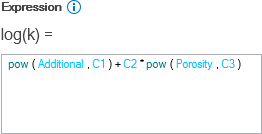
When you type in your expression with the correct syntax, the variables and math functions will be displayed in different colors. click to enlarge
- If you have assigned an additional property in the previous Assign Data step, the name and the unit of the additional property will show up as a note below the expression field. If the additional property has a unit, JewelSuite will consider it in SI units. In case your original expression does not rely on SI units, you must transform your expression accordingly. You can look up the conversion factors from Home > Settings > Unit Conversion.
- In addition to using constant numbers in the expression field, in the Custom Variables section, you can specify variables C1, C2 and C3 to use as constants and/or coefficients in your expression.
- If you have more than one facies class, select each facies class in turn and repeat the steps 3, 4, 5 until you have defined a function for each facies class.
- Click Apply to save the expression and keep the form open, or click OK to save the expression and close the form.
 next to the C1, C2, C3 entry fields to open the Uncertainty Parameter dialog. For how to use the controls on the dialog, see The Uncertainty Parameter dialog. For information about parametric uncertainties and how to use them in JewelSuite Subsurface Modeling, see Incorporating uncertainty in static or dynamic modeling.